Creating Package Plans
The Package Plans menu allows the user to create, modify and delete package plans. Before creating any packages, users must first create Package Components. User can create a package plan by adding components, surcharges, occupancy costs, and discounts. User can also define the post options, package yield, OTA rate and tariff options.
Breakpoint: 50390 - Package Plans (Engineering - Package)
Perform the following steps to create a package plan:
Navigate to Settings à Package à Package Plans.
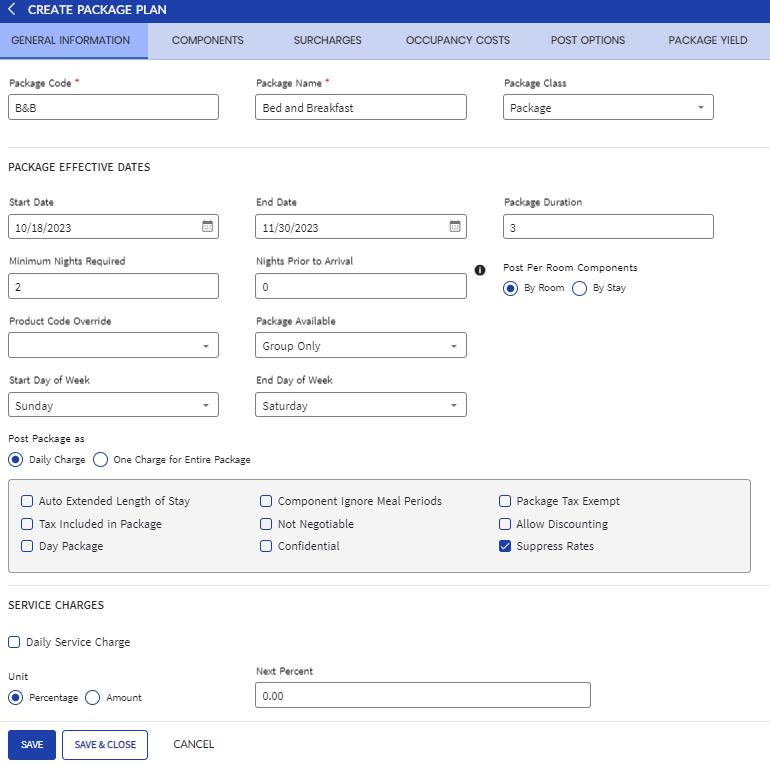
Click Create Package Plan.
Refer to the following table and fill in the fields:
|
Field |
Description |
|---|---|
|
Package Code |
A unique code to represent the package. Up to 6 alphanumeric characters are supported. |
|
Package Name |
A name for the package. |
|
Package Class |
Select a preferred class for the package. |
|
Package Effective Details |
|
|
Start Date |
The date from which the package must be effective and available. |
|
End Date |
The date until which the package must be effective and available. |
|
Package Duration |
The number of nights covered in the package. |
|
Minimum Nights Required |
The minimum number of nights required for a reservation to avail this package. The value entered in this field must be less than or equal to the value entered in the Package Duration field. |
|
Nights Prior to Arrival |
The number of nights prior to arrival date of a reservation before which the reservation must be made to select the package. |
|
Post Per Room Components |
Determines how per room package components must be posted when a room is being shared. The available options are,
|
|
Product Code Override |
For Future Use |
|
Package Available |
Select a preferred guest/account type for which the package must be available. The package will not be presented in the reservation process if the account/guest type does not match the selection. The available options are,
|
|
Start Day of Week |
Select a day of a week from which a typical hotel week should start. |
|
End Day of Week |
Select a day of a week at which a typical hotel week should end. |
|
Post Package as |
Determines the posting frequency of the package. The available options are,
|
|
Auto Extended Length of Stay |
When enabled, allows a package to cycle throughout the guest stay period. For example, if a two-night package has a guest staying six nights at the property, the two-day package plan would cycle three times during the guest stay at the property. |
|
Component Ignore Meal Period |
When enabled, the time of day is ignored while a meal component is posted. That is, the meal components are posted manually to the package folio regardless of the time of day they come through the interface. |
|
Package Tax Exempt |
When enabled, indicates that the package is exempted of taxes. For VAT-enabled properties, all components in the package will be tax-exempt irrespective of whether the Tax Exempt checkbox is enabled or disabled for the components in the package. |
|
Tax Included In Package |
When enabled, indicates that the package charge includes the taxes. That is, only the package charge is posted to the folio. If not enabled, the package charge and the taxes for the package charge are posted in the folio. |
|
Not Negotiable |
When enabled, the Package Detail tab is disabled when attached to a stay record and the user cannot modify the package details. |
|
Allow Discounting |
When enabled, the package rate can be adjusted by the user at the time of booking. If this flag is enabled or disabled later, the existing reservations which already has the package selected will not be affected. The user must un attach and re attach the package for the change to take effect on the reservation. |
|
Day Package |
When enabled, indicates that the package is for day guests. The Package Duration field value becomes 0 and the field is disabled when this flag is enabled. |
|
Confidential |
When enabled, allows users to create packages that are accessible only to a specific company account. |
|
Suppress Rates |
When enabled, allows users not to disclose the rate of packages added to reservations when sending confirmation emails to guests, printing registration cards, generating the Registration Card report, and sending E-Forms in mails. |
|
Room Revenue PostType |
Select the post type against which the room charge revenue for the reservation must be tracked. |
|
Commission |
|
|
Non Commissionable |
When enabled, indicates that the agency will be unable to receive commissions. The Commission (%), Commission Amount/Day, and Commission Amount/Stay fields will not be available for selection when this flag is enabled. |
|
Commission Percentage (%) |
The percentage of commission to be paid to the travel agency. |
|
Commission Per Day |
The per day commission set on the selected travel agency account. |
|
Commission Per Stay |
The per stay commission set on the selected travel agency account. |
|
Tariff Details |
|
|
Default Tariff |
Displays the tariff selected as default tariff in the Tariff Options tab. |
|
Confirmation Type 1 |
Select a preferred confirmation 1 type for the package. |
|
Confirmation Type 2 |
Select a preferred confirmation 2 type for the package. |
|
Template Details |
|
|
Email Template |
Select a preferred email template from the drop-down list. The templates created in the Email Templates screen (Settings à Utilities à Templates) will be available for selection here. |
|
SMS Template |
Select a preferred SMS template from the drop-down list. The templates created in the SMS Templates screen (Settings à Utilities à Templates) will be available for selection here. |
|
Folio Template |
Select a preferred folio template from the drop-down list. The templates created in the Folio Template screen (Settings à Template Setup) will be available for selection here. The template selected here will be attached to the reservation when this package is selected for the reservation. |
|
Comments |
|
|
Staff Comments |
Enter staff comments for the package, if any. The maximum character limit is up to 500 alphanumeric characters. |
|
Promo/Sales Description |
Detail or description about the package for reservation agents or online brokers. |
|
Arrival Time |
Set the default arrival time to be used when the package is attached to the reservation. |
Perform the steps in the Adding Package Components to Save the package.